Documentation
Clients
Manage your client information and details
On this page▼
Clients
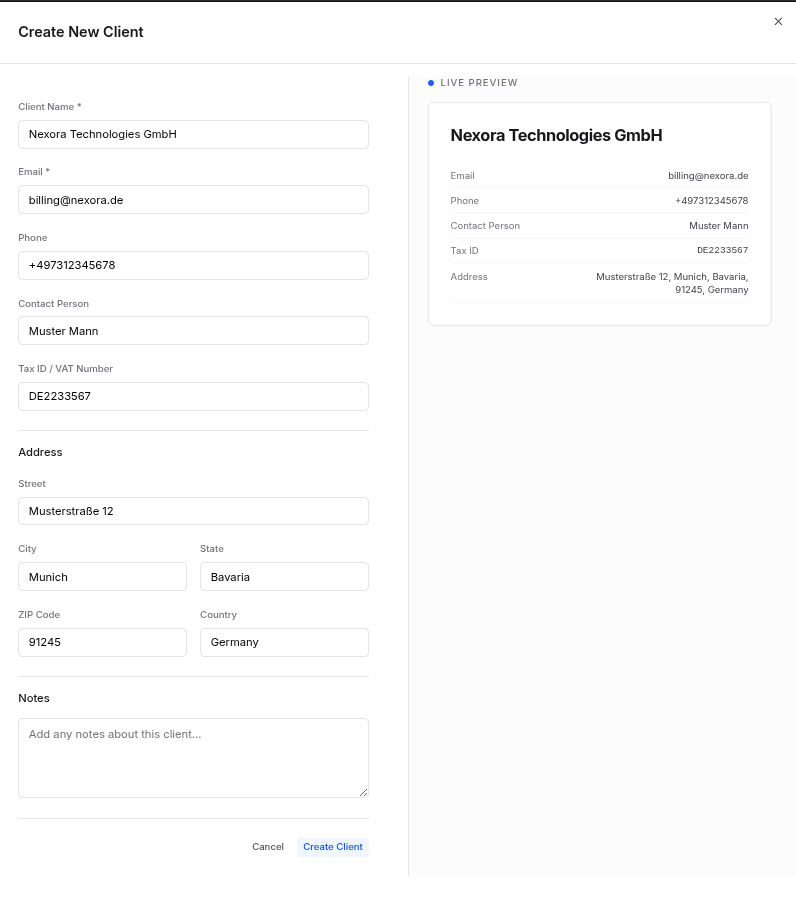
Learn how to add, organize, and manage your client information in Effitrio. Creating a client, opening a profile preview, and editing all use a slide-over beside your list so you stay in context without leaving the page.
Adding Clients
To add a new client:
- Navigate to the Clients section from the sidebar
- Click on New Client button
- Fill in the client details:
- Client name (required)
- Email address
- Phone number
- Company name
- Address
- GST/Tax ID (if applicable)
- Custom notes
- Click Save to add the client
Editing Client Information
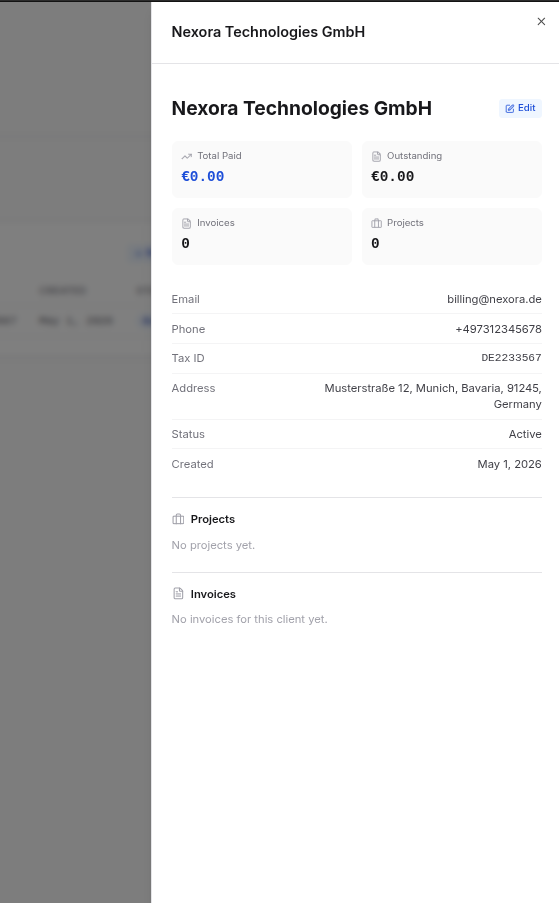
To edit an existing client:
- Go to the Clients list
- Find the client you want to edit
- Click on them to view their profile
- Click the Edit button
- Update any information as needed
- Click Save to apply changes
Viewing Client Details
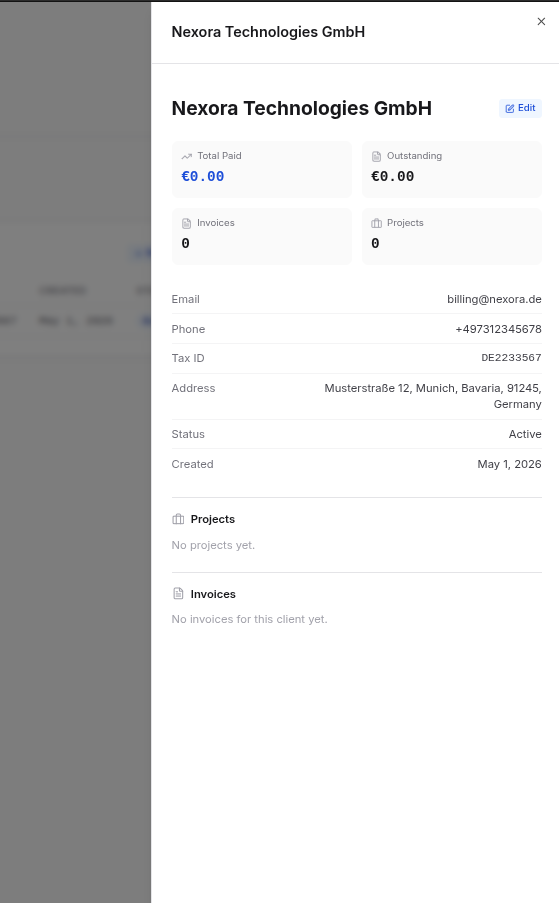
Each client profile includes:
- Overview - Basic information and contact details
- Invoices - All invoices issued to this client
- Projects - Projects associated with this client
- Payment History - Record of payments received
- Notes - Any additional information about the client
Click on any section to view more details.
Archiving Clients
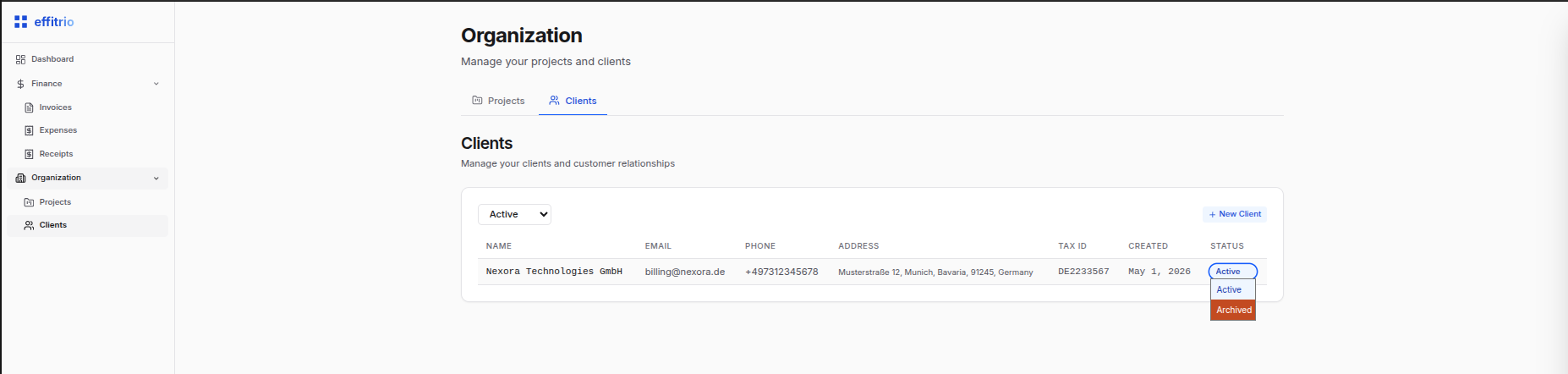
To archive a client:
- Open the client section
- Change the Client status from Active to Archive
- The client will be archived.
- There is no option for deletion.
Client Organization
Keep your client list organized by:
- Search - Use the search box to find clients quickly
- Filter - Filter by client type or other criteria
- Tags - Add custom tags to group similar clients
Default Payment Terms
Set default payment terms and currency for each client. These will be automatically applied when creating new invoices for that client.